Top 10 Beginner Video Editing Software in 2026
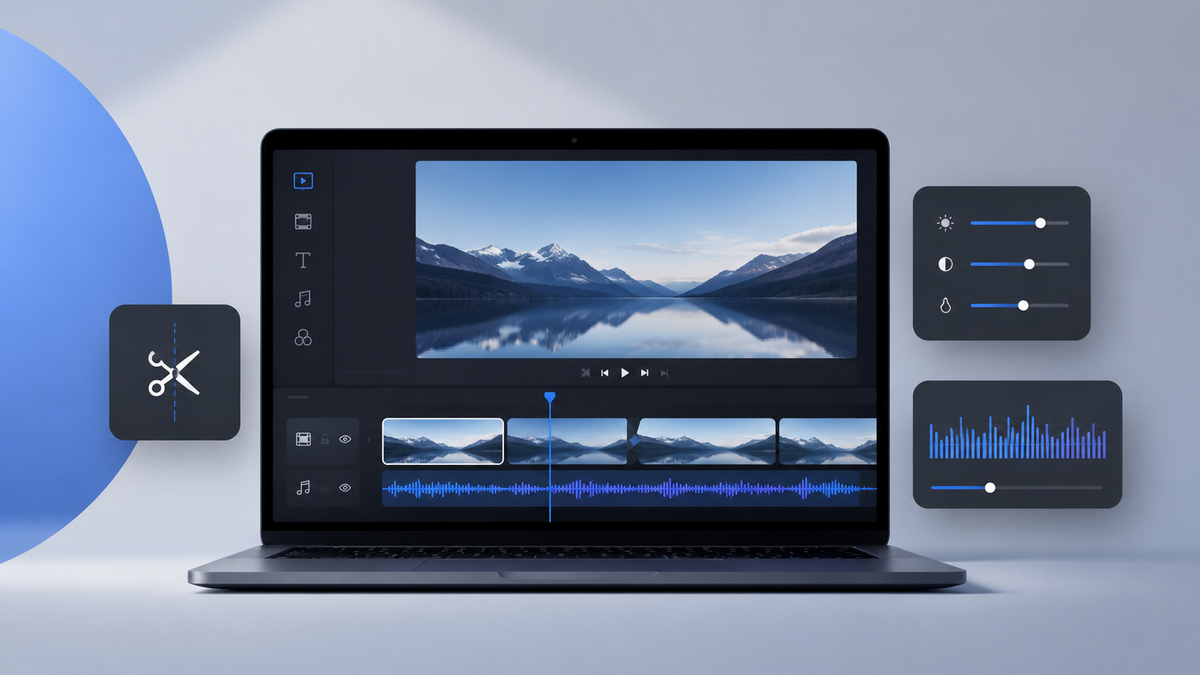
Beginner video editing software usually needs a clear timeline, quick trimming, readable captions, simple audio controls, export presets, and enough templates or effects to finish a video without learning professional editing theory.
Search results for phrases like “easy video editor,” “best simple video editor apps 2026,” and “beginner video editing software” often mix very different tools: mobile apps, browser editors, desktop programs, and AI video generators.
This guide compares the best simple video editor apps in 2026 and helps you choose beginner video editing software that matches your goals, whether you're creating YouTube videos, social media content, tutorials, marketing clips, or personal projects.
Some are better for family videos and YouTube tutorials. Some fit short social clips. Some work well for team content. Others give you more room to grow. So let’s look at ten video editor apps and see which one might fit the way you work.
Best Video Editor Apps for Beginners in 2026
To make the comparison easier, here's a quick overview of the best video editor apps for beginners before we dive into the detailed reviews.
Now, let's take a closer look at each tool and see where it shines for beginner creators.
1. Movavi Video Editor
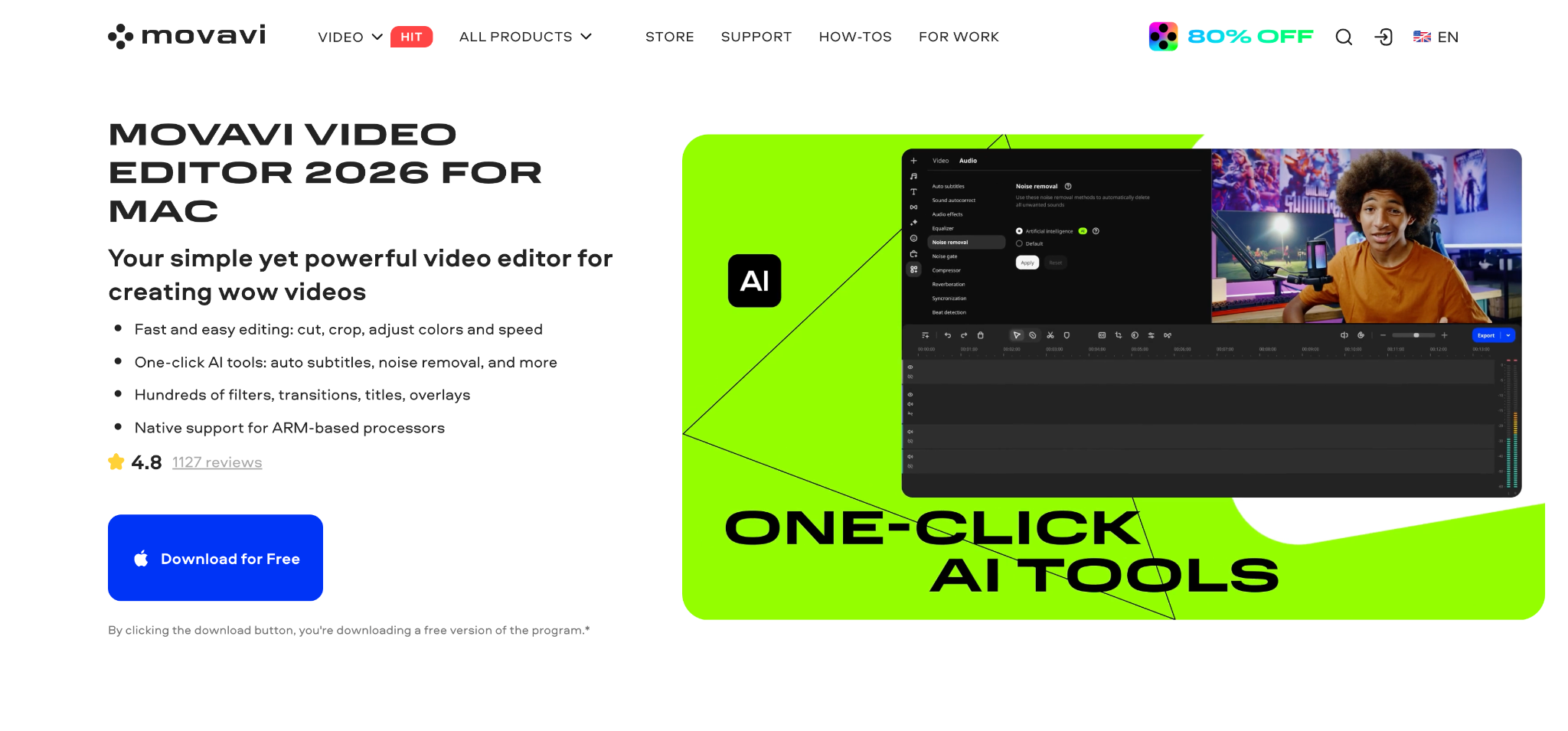
Movavi Video Editor is one of the easiest desktop choices for beginners who want a real timeline editor without the heavy learning curve of professional software. It works well for YouTube videos, family projects, tutorials, product clips, event videos, and short social content.
The interface is simple: a familiar timeline, preview window, media panel, and tool sections. Beginners can trim, split, rotate, crop, mute, adjust speed, add transitions, work with titles, and place music without digging through dense menus. That matters when someone is editing their first full video and does not want every small change to turn into a search.
Movavi also has tools that reduce repetitive editing work. AI auto subtitles can generate captions, silence removal can cut quiet parts from speech, noise reduction can clean up rough audio, and background removal can separate a subject from the scene. Auto-tracked cropping is especially practical for vertical formats because it can keep the subject in frame when adapting wider footage for social platforms.
The effects library is another strong point. Beginners get transitions, filters, overlays, stickers, titles, LUTs, and music without having to build everything manually. Hover previews make it easier to check how an effect looks before adding it to the project.
Supported platforms: Windows and macOS.
Pricing: free trial; paid version starts from $19.95/mo
Best for: beginners who want an easy video editor on desktop with enough AI tools, effects, and export control for regular video projects.
2. Adobe Premiere Elements
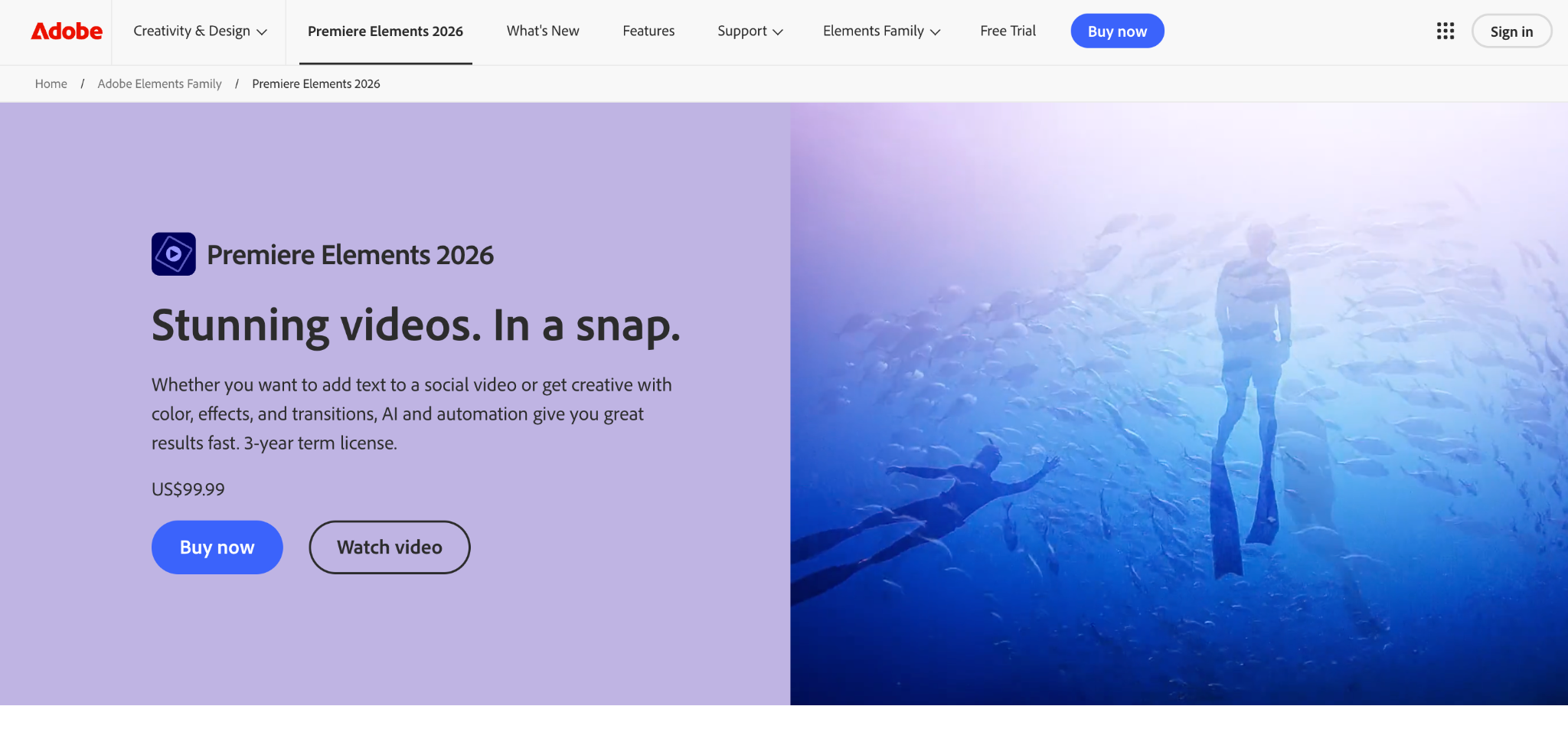
Adobe Premiere Elements is a good fit for beginners who want structure while they learn. It is not the same product as Adobe Premiere Pro. Premiere Elements is built for home users, hobbyists, students, and creators who want guided editing rather than a professional production system.
The main advantage is its editing modes. Quick mode is for basic cuts and fast edits. Guided mode walks users through specific tasks. Advanced mode gives more manual control once the user feels comfortable. This makes Premiere Elements less intimidating than a blank professional timeline.
Its Guided Edits are practical for common beginner tasks, such as trimming clips, resizing video, adding motion titles, fixing color, creating highlight reels, and using effects without guessing where each setting is. Adobe also includes automation for tasks like reframing, selecting moments, and matching music length to a video.
Premiere Elements includes Organizer, which can help users manage photos and videos before editing. That is handy for people working with many family clips, phone videos, vacation footage, or school projects.
Supported platforms: Windows and macOS.
Pricing: a 3-year term license for $99.99.
Best for: beginners who want step-by-step editing guidance and do not mind paying for a structured desktop program.
3. Clipchamp
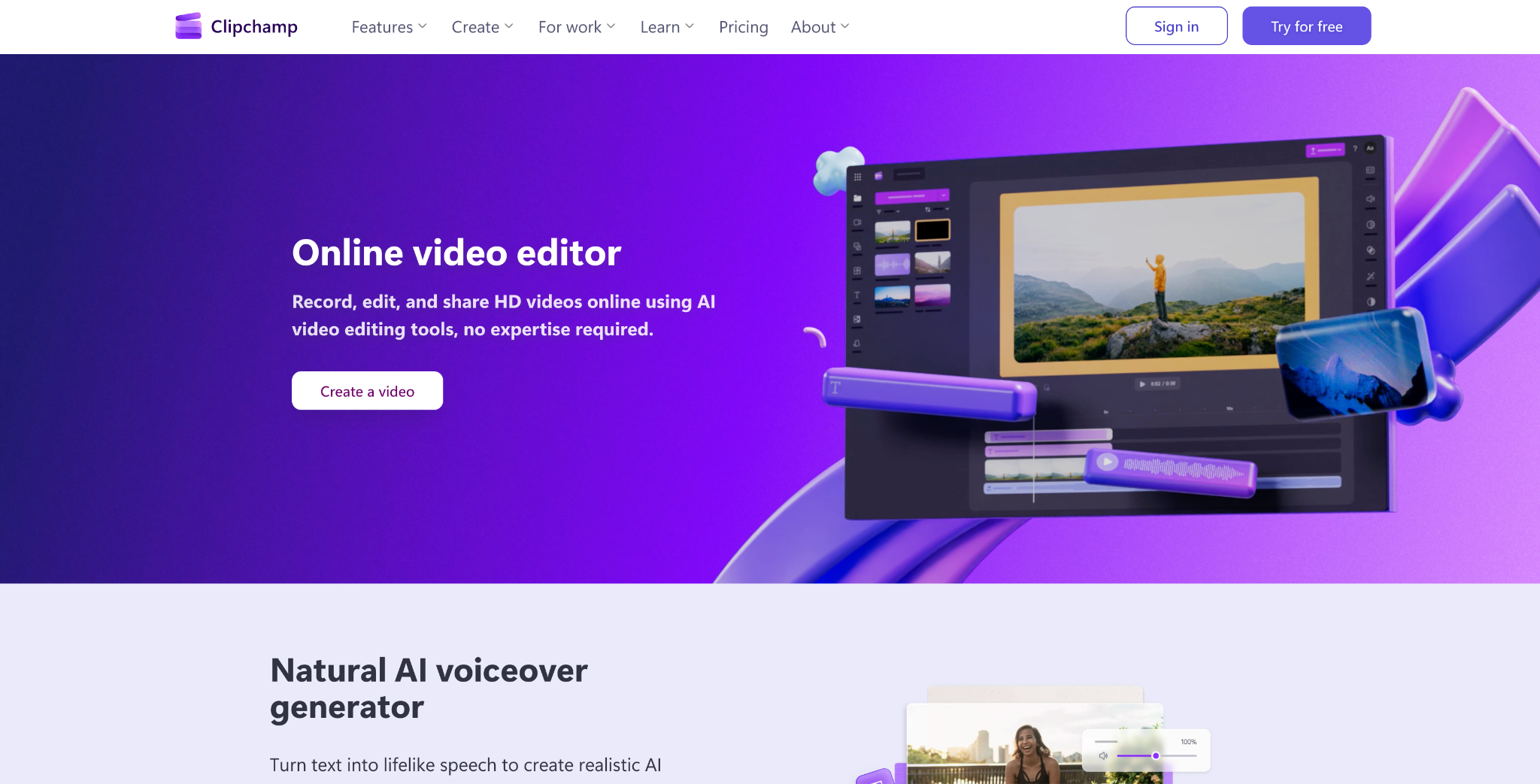
Clipchamp is one of the most practical browser-based editors for beginners in 2026. It is owned by Microsoft and also has a Windows app, so it feels like a natural choice for many Windows users who want to start editing without installing heavy software.
The editor is simple enough for quick projects but not too limited. Users can trim clips, add text, record webcam footage, record the screen, add voiceovers, insert stock media, create captions, and export in common formats. It also supports AI subtitles in many languages.
The free plan is stronger than many beginner tools because it includes core editing tools, no watermark on exports, and exports up to 1080p. That makes Clipchamp a low-risk option for someone who wants to test video editing before buying software.
Premium access adds 4K exports, premium filters and effects, more stock media, and brand kit options. For creators already paying for Microsoft 365, Clipchamp may fit into their current subscription setup.
Supported platforms: web browser and Windows app.
Pricing: free plan; Microsoft 365 Personal at $9.99 per month or $99.99 per year.
Best for: beginners who want a browser editor, screen recording, captions, and clean 1080p exports without paying first.
4. iMovie
iMovie remains the easiest free editor for Apple users. It is already available across Apple devices, and it keeps the editing process simple enough for people who do not want to learn track-based editing in detail.
On Mac, iPhone, and iPad, iMovie works well for school projects, travel videos, family clips, birthday videos, simple YouTube videos, and short social edits. The app includes templates, titles, transitions, filters, green screen, picture-in-picture, split screen, and 4K export. Apple’s Storyboards and Magic Movie features also make it easier to build a rough video from existing clips.
The main limitation is depth. iMovie is not built for advanced audio work, complex captions, detailed effects, or heavy multi-track editing. That said, beginners often need fewer controls, not more. iMovie is good because it removes many choices that would slow down a first project.
Another advantage is device transfer. Someone can start with clips shot on an iPhone, make quick edits on mobile, then finish on a Mac if needed.
Supported platforms: macOS, iOS, and iPadOS.
Pricing: free.
Best for: Apple users who need a free simple video editor for home videos, school projects, and casual creator content.
5. CyberLink PowerDirector
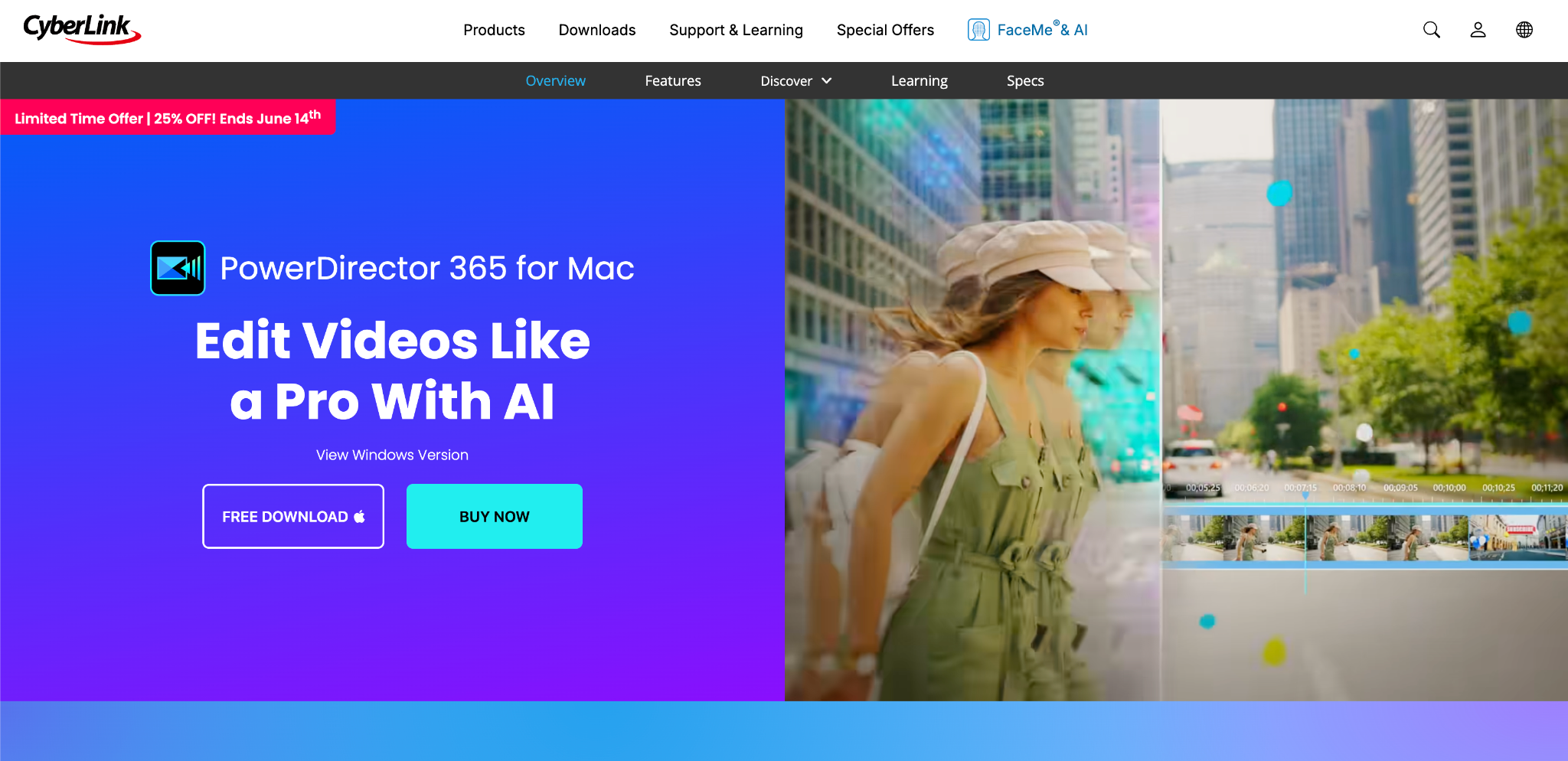
PowerDirector is more advanced than the easiest tools on this list, but it still belongs here because many beginners want software they will not outgrow after a few projects. It gives users a more complete desktop editing setup while still offering templates, guided tools, and automated features.
The editor includes timeline editing, titles, transitions, effects, 4K support, screen recording, audio tools, LUT support, motion graphics, and AI-assisted tools. Depending on the version, users can get AI speech-to-text, text-based editing, background removal, face blur, and audio cleanup.
PowerDirector is a better match for a beginner who already knows they want to edit regularly. It may be more than needed for a single family montage or a quick school video. For YouTube channels, product demos, tutorials, and hobby projects that will become more ambitious, it gives more room than most browser tools.
The interface has more panels and settings than Movavi, iMovie, or Clipchamp. That means the first project may take longer. The trade-off is greater control over the edit once the user understands the layout.
Supported platforms: Windows and macOS.
Pricing: free trial; paid plans start from $24.99/mo.
Best for: beginners who want to grow into deeper desktop editing without jumping straight to professional software.
6. Pinnacle Studio
Pinnacle Studio is a Windows-only desktop editor with a more traditional editing feel. It is beginner-accessible in the sense that it includes standard editing tools, templates, tutorials, and a clear product family, but it is less beginner-soft than iMovie, Clipchamp, or Movavi.
The Standard version includes HD editing, six video and audio tracks, screen recording, split-screen video, DVD menu templates, simplified color controls, audio editing, keyframe controls, and two-camera multicam editing. The Ultimate versions add 4K support, unlimited tracks, video masking, motion tracking, smart object tracking, 360-degree editing, blend modes, more templates, and stronger color tools.
This makes Pinnacle Studio better for users who want a classic Windows editor and are ready to spend time learning. It is not the fastest choice for a first social clip, but it makes sense for long-form home videos, hobby films, DVD projects, and multi-camera edits.
Supported platforms: Windows.
Pricing: free trial; full version is $79.99.
Best for: Windows users who want a paid desktop editor with a traditional timeline and more manual control.
7. CapCut
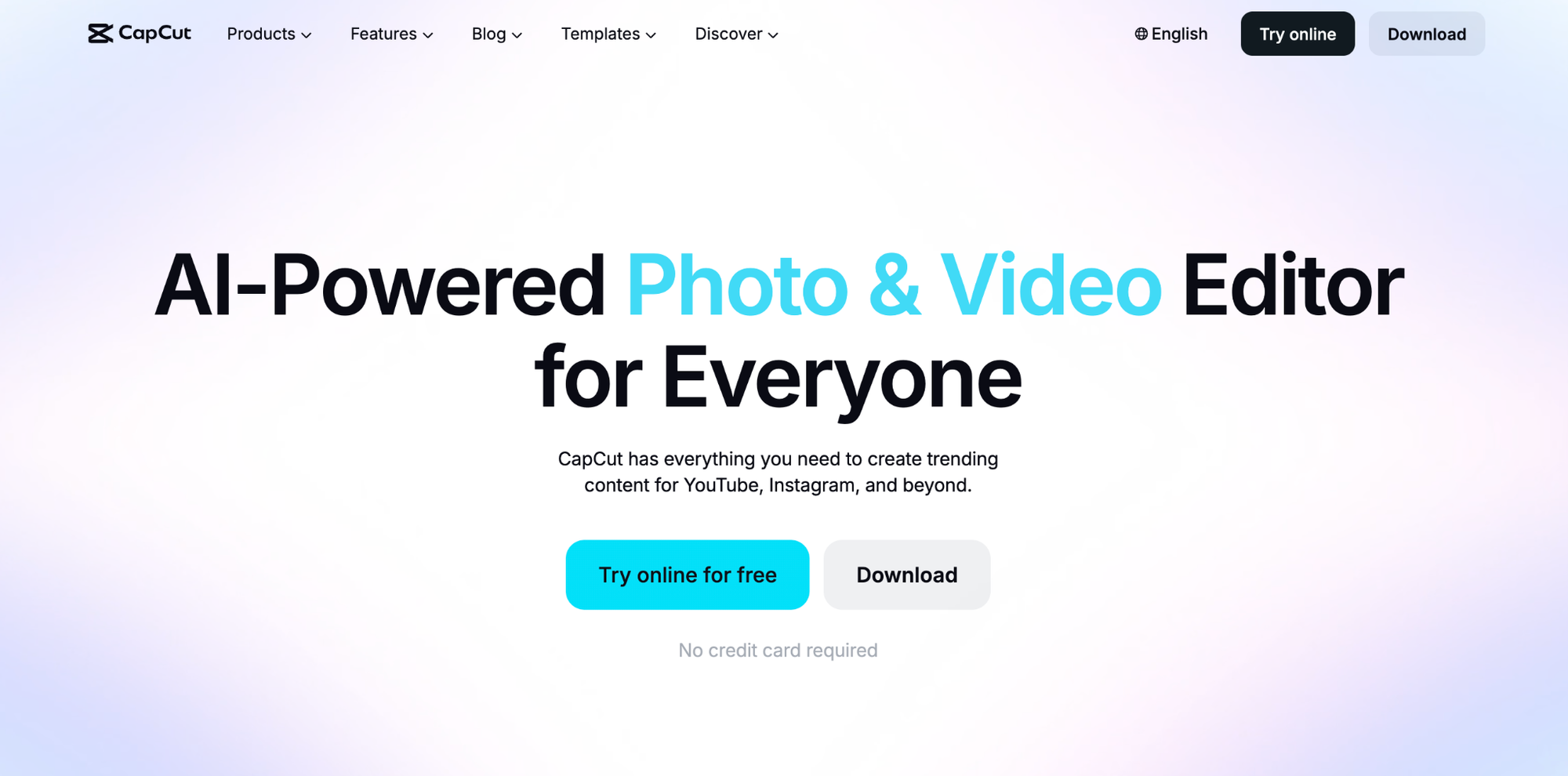
CapCut is one of the fastest choices for short-form social videos. It started as a mobile-first editor, but now covers mobile, desktop, and browser editing. That makes it easy for creators to move between phone clips, desktop edits, and online assets.
CapCut is especially strong for TikTok, Reels, Shorts, ads, and creator-style posts. It includes trimming, resizing, captions, text templates, stickers, transitions, background removal, music, sound effects, filters, and social format presets. On desktop and web, it also includes more advanced options, such as keyframes, transcript-based editing, color tools, and one-click short-video features.
The reason beginners like CapCut is speed. The app is designed around the types of edits people make for social platforms every day: captions, music timing, quick effects, vertical framing, and short clips. It is less ideal for people who want to learn careful long-form editing or manage complex projects with lots of organized media.
Supported platforms: iOS, Android, Windows, macOS, and web.
Pricing: free version; the Pro plan starts from $9.99/mo.
Best for: creators who mainly edit short vertical videos and want fast captions, effects, and social-ready exports.
8. Canva Video
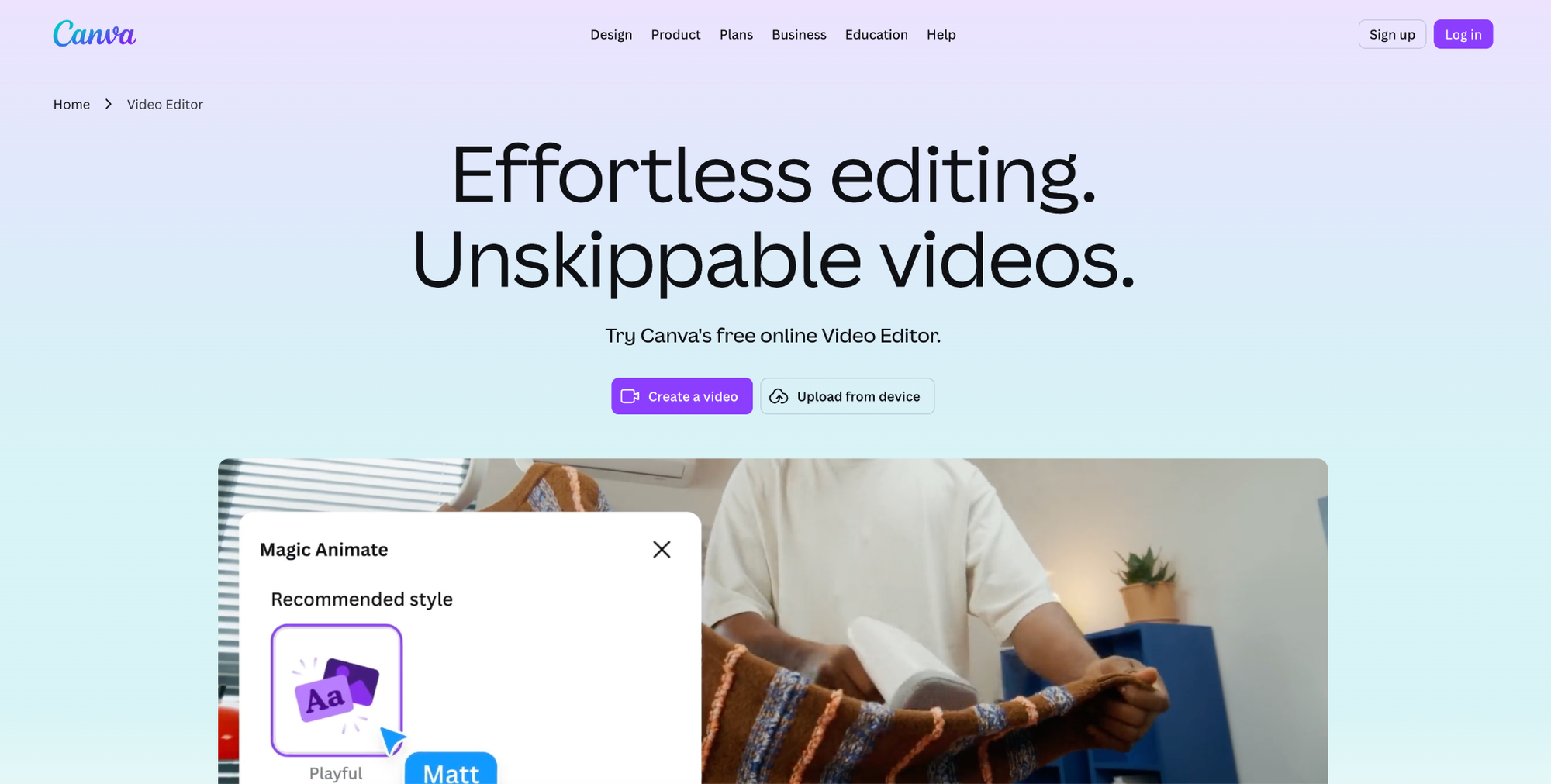
Canva Video is not a classic video editor in the same way as PowerDirector or Pinnacle Studio. It is closer to a design-first video tool. That makes it very good for beginners who need branded social clips, announcements, presentation videos, course materials, short ads, and team updates.
Canva works well when the video needs to look clean quickly and match a brand style. Users can start with templates, add clips, place text, add animations, insert music, use stock assets, and export videos for different platforms. Canva Pro adds tools like background removal, brand kits, premium templates, more stock media, Magic Video, captions, Beat Sync, and voice cleanup features depending on plan availability.
The drawback is timeline control. Canva is not the best choice for detailed trimming, advanced audio mixing, complex multi-track work, or long-form editing.
Supported platforms: web, Windows, macOS, iOS, Android, and Chromebook.
Pricing: free plan; paid plan at $144/yr.
Best for: beginners who need branded social videos, presentation-style clips, and template-based video content.
9. VEED.io
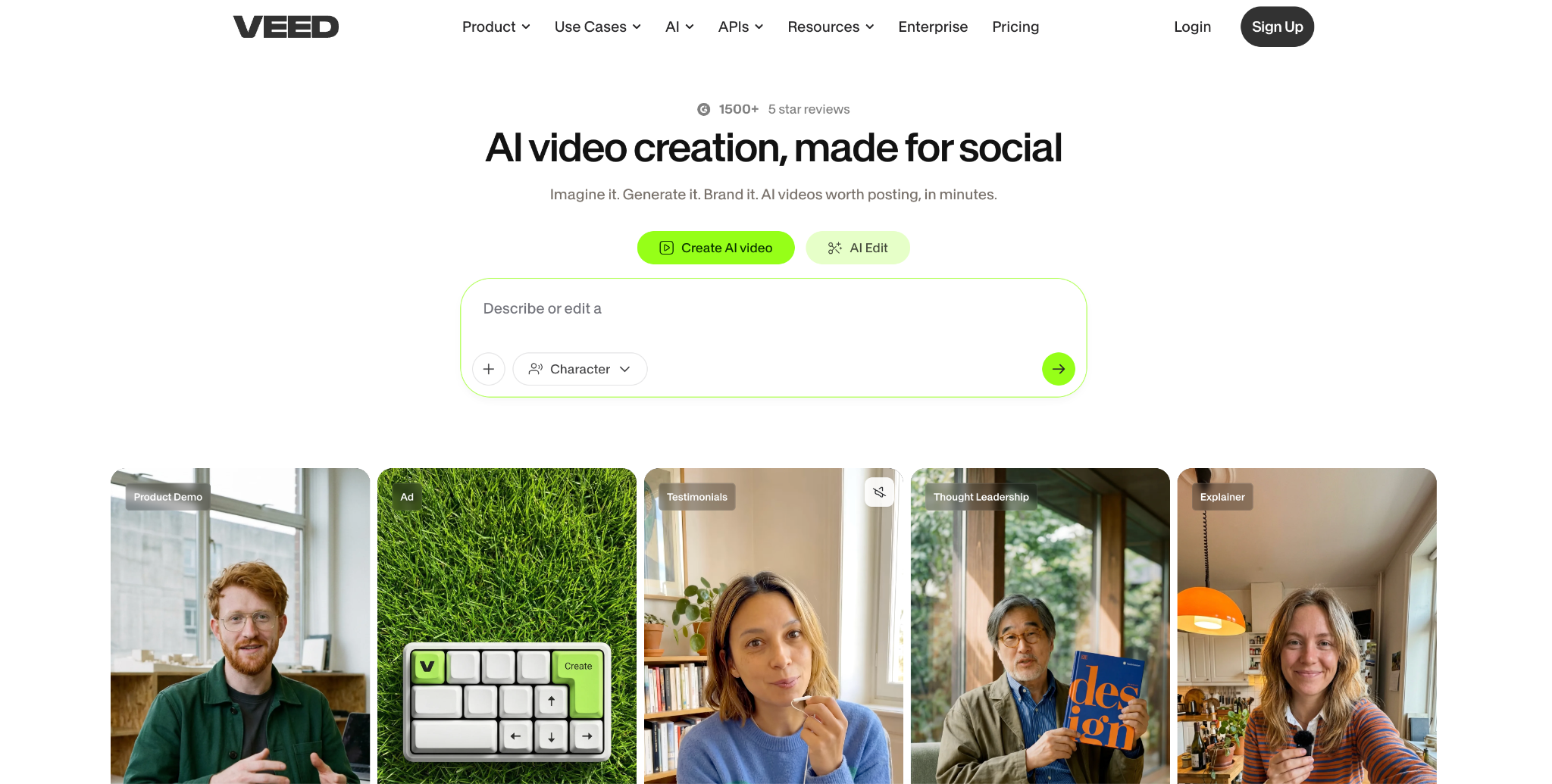
VEED.io is a browser editor built around captions, spoken video, recording, and AI-assisted editing. It is a strong choice for beginners who make talking-head videos, course clips, internal training videos, sales videos, podcasts, and short social posts based on speech.
The editor includes subtitles, translation, background-noise removal, screen recording, webcam recording, text-to-speech, avatars, background removal, eye-contact tools, and brand controls. That set of tools fits people whose main problem is not complex editing but cleaning up recorded video quickly.
VEED is easier to start with than a traditional desktop editor because there is no installation and many features are task-based. Upload a video, create captions, remove noise, resize for a social platform, add text, and export. That is the kind of flow many beginners expect from modern online tools.
The downside is that VEED is less focused on teaching classic editing fundamentals. If someone wants to learn detailed timeline editing, manual audio balancing, and project organization, a desktop editor may be better.
Supported platforms: web browser.
Pricing: free plan; paid plans from $12/mo.
Best for: beginners who edit speech-based videos and need captions, translation, recording, and browser convenience.
10. InVideo
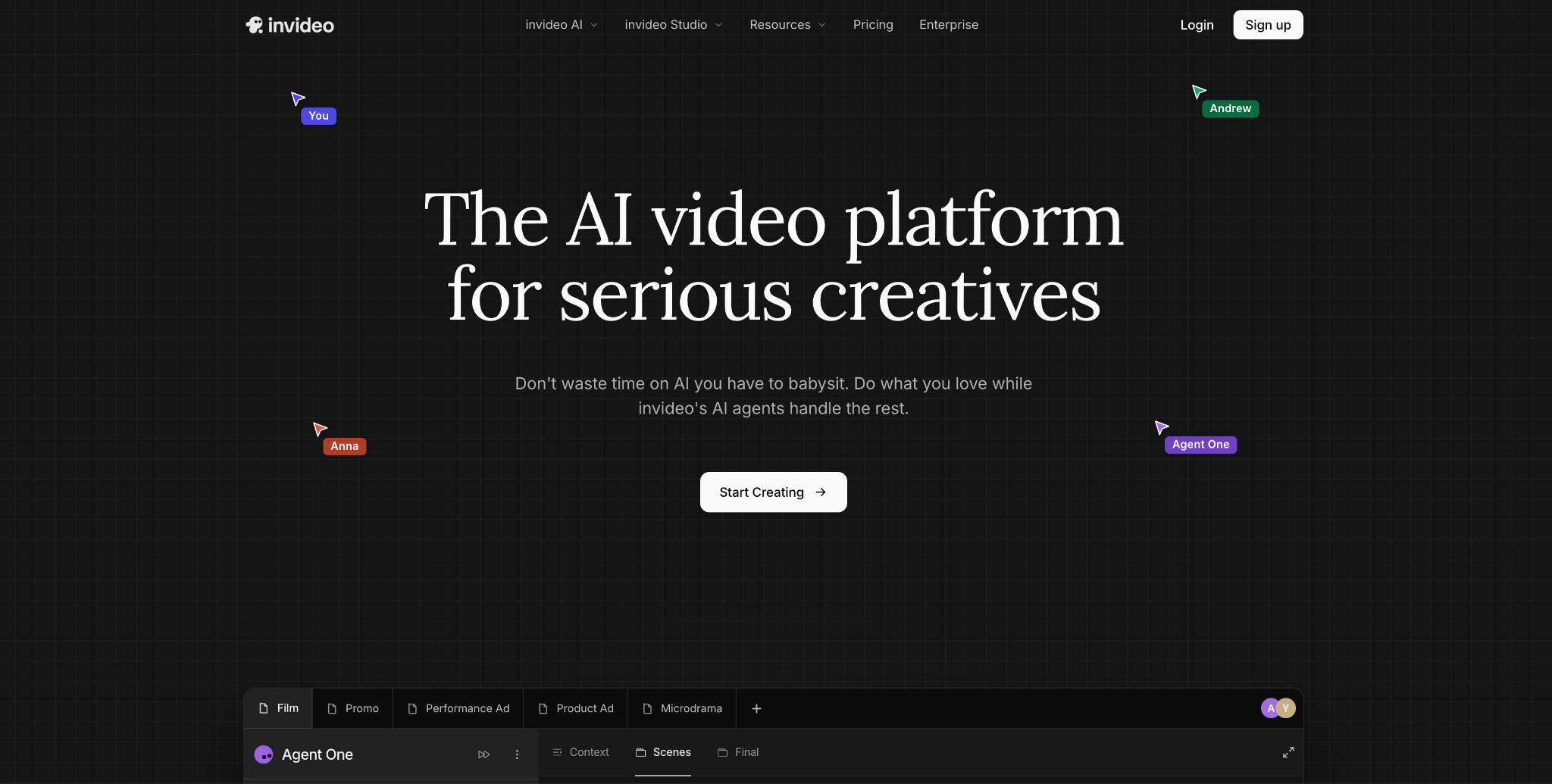
InVideo is a good option for beginners who want AI-assisted video creation plus access to a more traditional online editor. Its current product setup separates InVideo AI from InVideo Studio, which matters when comparing it with other beginner tools.
InVideo AI is built around prompt-based video creation. Users can generate videos with scripts, voiceovers, avatars, subtitles, translation, and stock footage. InVideo Studio is closer to a timeline editor for users who want to edit visuals, text, audio, and templates manually.
This makes InVideo a practical choice for marketing videos, social posts, explainers, ads, list-style videos, and content made from scripts. It is less ideal for beginners who want to learn hands-on editing from raw footage because AI generation can hide the editing decisions instead of teaching them.
The pricing model also needs attention. InVideo uses plans and credits, and model and agent prices can change.
Supported platforms: web, mobile app.
Pricing: free access; paid plans from $17/mo.
Best for: beginners making marketing videos, social content, and script-based videos with AI assistance.
How to Choose the Right Easy Video Editor
For most Windows and Mac users, Movavi Video Editor is the safest first desktop pick. It has a clear layout, simple core edits, AI subtitles, audio tools, effects, and enough control for regular projects.
For Apple users who want free software, iMovie is the obvious starting point. It costs nothing, runs across Apple devices, and covers basic editing needs well.
For browser editing, Clipchamp is the best first stop if you want recording, captions, stock assets, and watermark-free 1080p export on the free plan. Canva Video is better when templates, brand assets, and visual layouts matter more than precise timeline work. VEED.io is stronger for videos built around speech and captions. InVideo is better when AI-generated drafts and stock-assisted videos are part of the plan.
For short-form social video, CapCut is still one of the fastest choices. It is built around captions, music, effects, vertical formats, and quick publishing formats.
For beginners who want more long-term editing depth, PowerDirector is the better growth path than most simple tools. Pinnacle Studio also gives strong manual control, but it makes more sense for Windows users who are ready for a more traditional editor.