7 Best Free MP4 Converters

Looking for a free MP4 converter sounds simple until you notice how different these tools are. Some are quick browser converters for one file. Others give you more control over resolution, audio quality, file size, batch conversion, or export settings.
This guide compares seven free MP4 converters and keeps the focus on what each tool actually does, where it has limits, and which details matter before you upload or convert your video.
What MP4 and why is it so widely used?
MP4 is the video format people usually choose when they do not want to think too much about playback. It opens on phones, laptops, tablets, smart TVs, and most upload platforms, so it’s a safe option for sharing videos or posting them online.
Typically, the need for MP4 emerges when there are some troubles with a file. In fact, the file gets rejected due to the upload button, its size, or incompatibility of an app that should open it with MP4.
However, a file can be wrong in terms of other elements regardless of the fact that its extension is MP4. In particular, it may feature the incorrect codec, high bitrate, strange audio configuration, or excessive resolution.
There are apps aimed at converting MOV, AVI, MKV, WebM, and WMV files to MP4. Besides, some of such applications perform additional actions regarding a file while converting it to MP4 and vice versa.
Top Free Online Converters to MP4
1. Movavi Online Video Converter
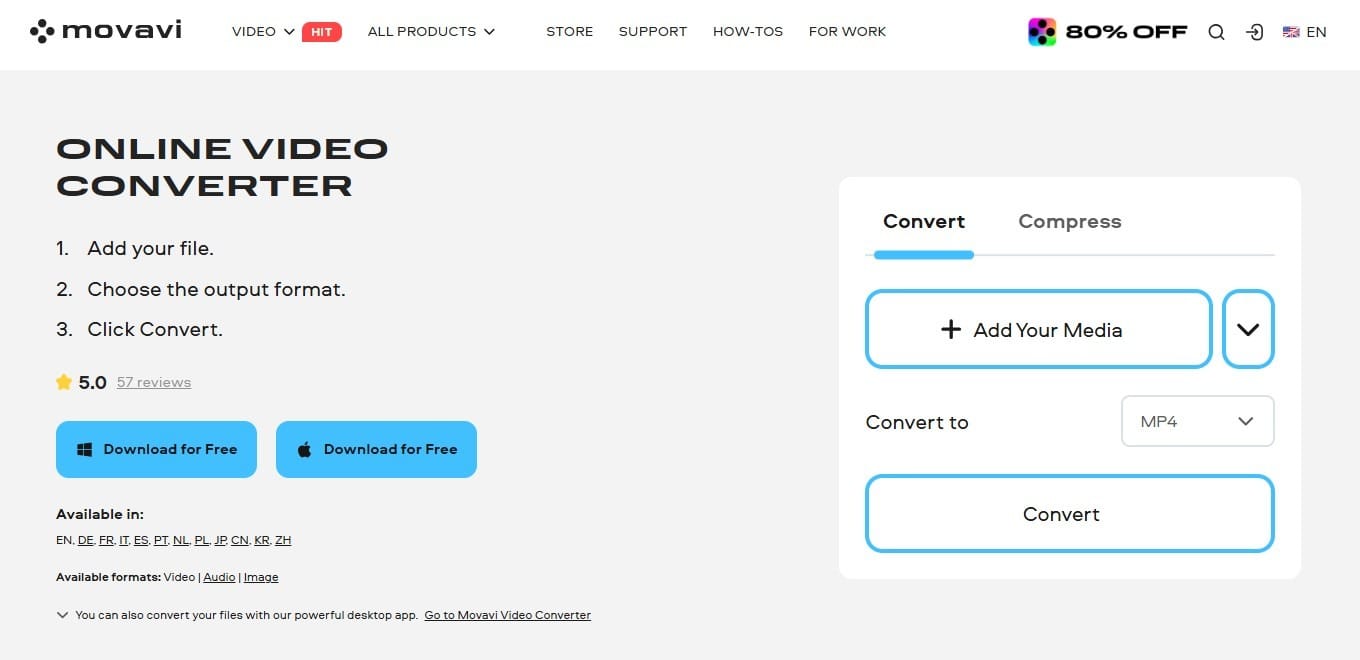
Movavi Converter is the speed-focused best MP4 converter for beginners. It works in the browser and can convert videos to MP4 and other popular formats. You can also change video resolution, adjust audio quality, or convert only a selected part of the file by seconds or minutes.
The settings are not overloaded, so it suits quick online file conversion better than detailed export tuning.
Pros
- Fast conversion
- Supports other popular video formats
- Lets you convert a selected time range
- Has essential video and audio quality options
Cons
- Fewer controls and tools than in the desktop version
2. HandBrake
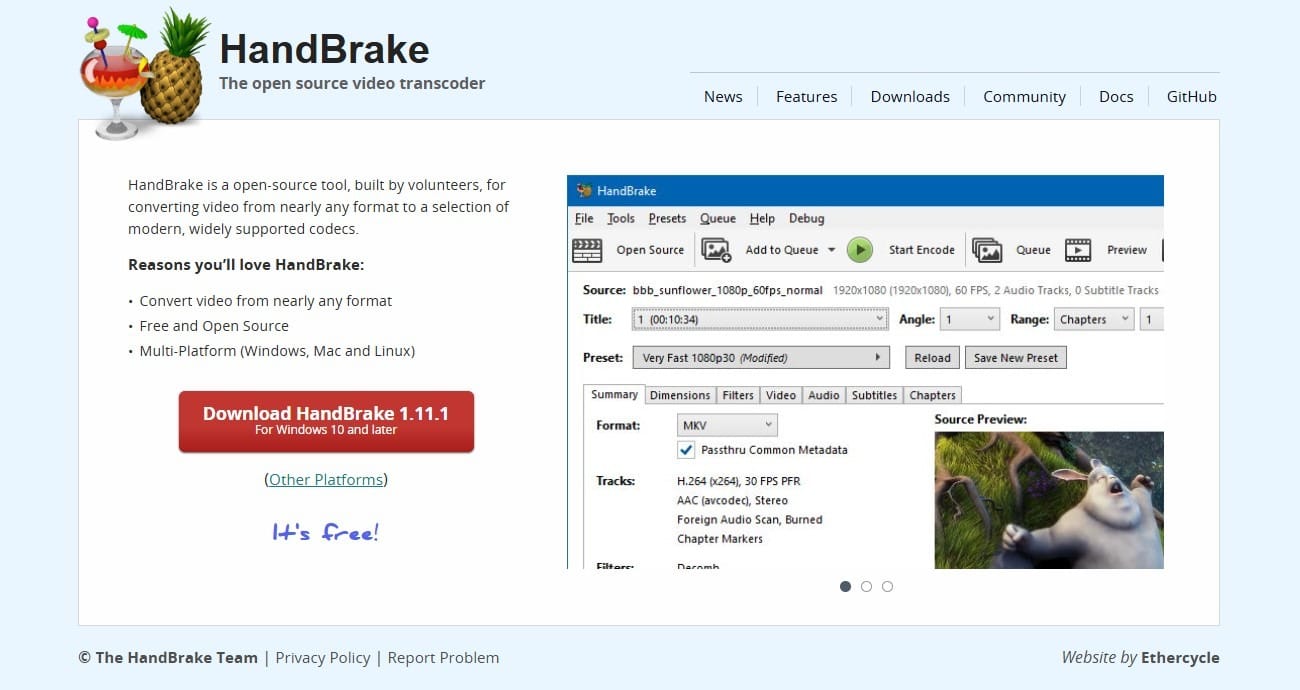
HandBrake is for users who care about the export settings more than the interface. The look is not modern, yes, and that is easy to notice at first. But It is free, open-source, and available on Windows, macOS, and Linux.
The program gives detailed control over codecs, quality, frame rate, subtitles, audio tracks, and compression. The learning curve is higher than with most browser converters, but the payoff is more precise handling of large files and final video quality.
Pros
- Completely free and open-source
- Detailed codec and compression controls
- Available on Windows, macOS, and Linux
- Batch queue support
Cons
- Not designed for trimming and styling videos
3. FreeConvert MP4 Converter
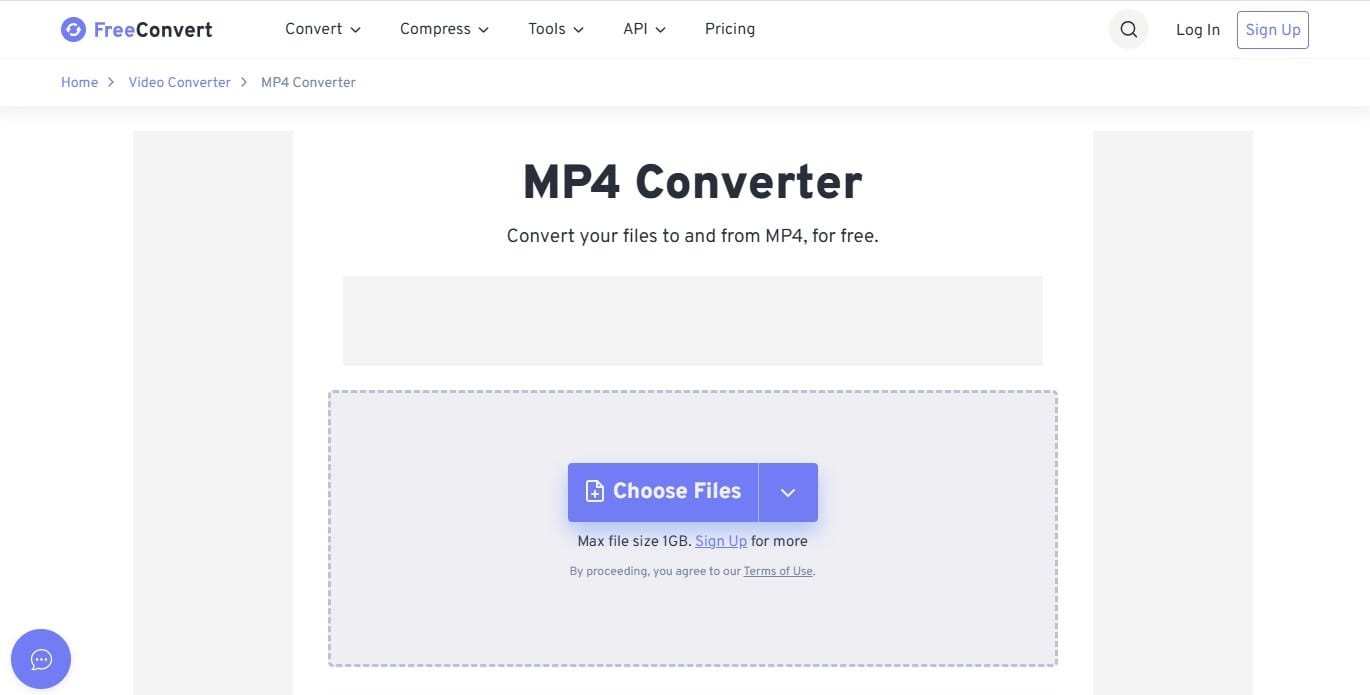
FreeConvert is a quick browser converter online. When you need to change a couple of files quickly and do not want to install anything, it’s a good choice. Upload a file, choose MP4, adjust settings (resolution, aspect ratio, codec, bitrate, audio). Wait a bit and download the result.
Its cloud import options are the practical extra here: Google Drive, Dropbox, OneDrive, and URL uploads are supported.
Pros
- Online file conversion
- Has presets for different output formats
- Connects to Google Drive, Dropbox, and OneDrive
- Allows basic size and quality changes
Cons
- The page contains ads
4. CloudConvert MP4 Converter
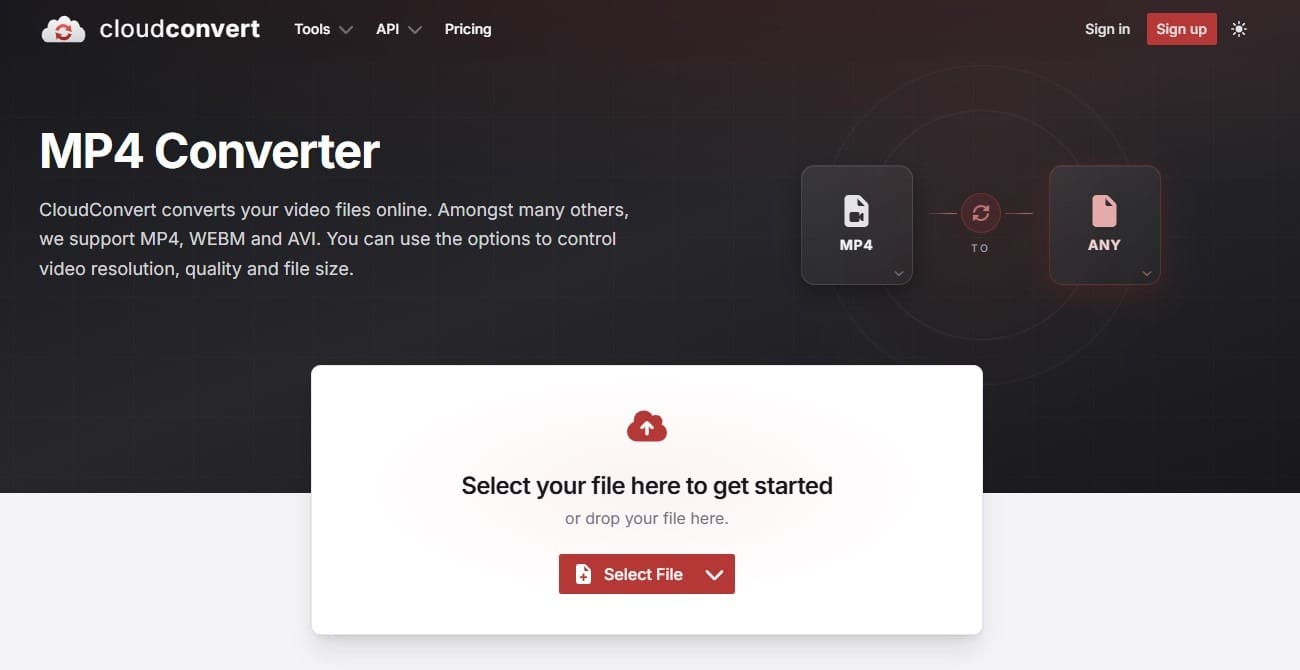
CloudConvert is another simple online converter. It has multiple pages for different format pairs, so you can quickly open the one you need and set video/audio options, also add subtitles as SRT or ASS, and watermark the export.
The service is free but that plan allows only 10 conversions a day, so heavy daily use becomes restrictive. The max file size is also limited to 1 GB.
Pros
- Clean interface
- Supports many output formats
- No installation required
- Adjustable settings
Cons
- Credit system can be confusing for first-time users
5. Binatomy Video Converter
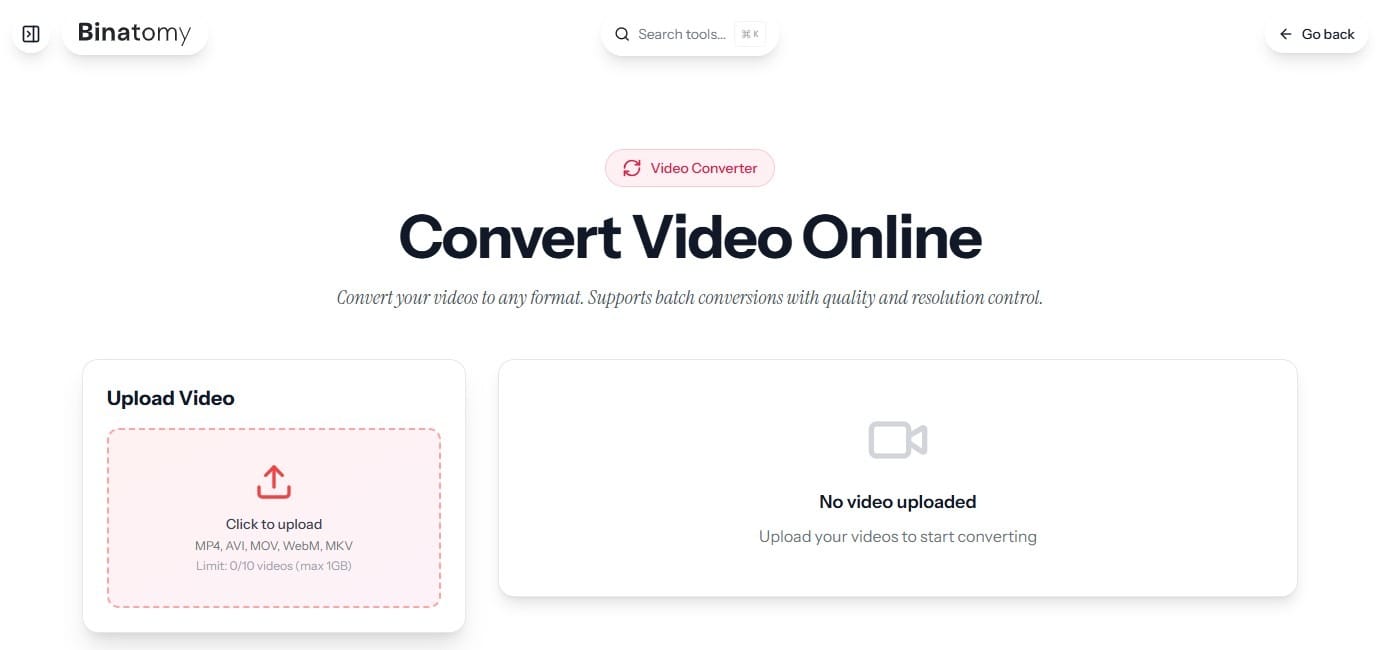
Binatomy maybe doesn’t have that many formats to convert into, but covers the common ones, including MP4, WebM, AVI, MOV, and MKV. The quality buttons make the setup simple, and users can also change the resolution before converting the file.
Batch conversion is more visual there than in many online tools. You can upload up to 10 videos, see them all on the page at the same time, watch original preview for each of them, and convert files one by one.
Pros
- Simple layout for quick tasks
- Secure server upload
- Supports common video formats
- Good for small batches
Cons
- Limited advanced controls
6. Online Video Converter
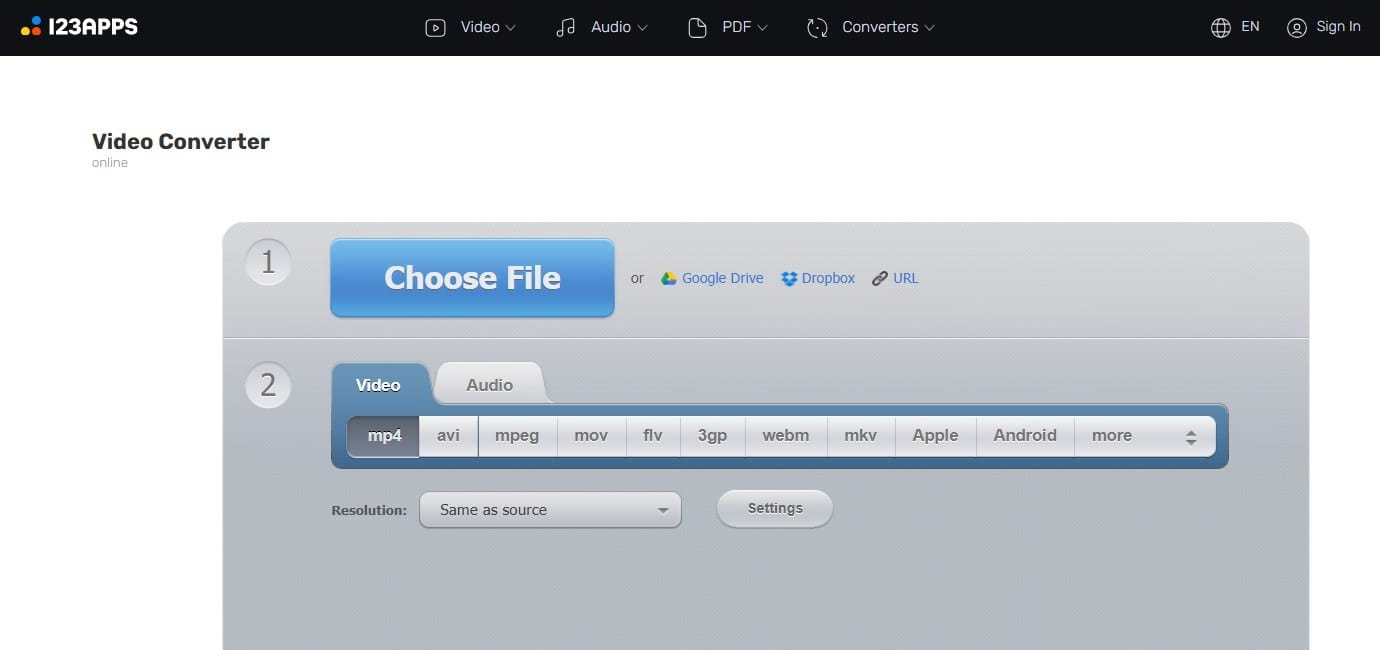
Online Video Converter by 123apps stands out mainly because of file size: it supports uploads up to 4 GB, which is quite generous for a browser-based converter. It has H265/HEVC support, which makes the tool more relevant for newer video files, not only older basic formats.
The online file conversion runs on 123apps servers and there is no limit on the number of files you can convert.
Pros
- Unlimited usage
- No sign-up required
- Supports more than 300 video formats
- Basic size and resolution settings
Cons
- No batch conversion option
7. Cloudinary MP4 Converter
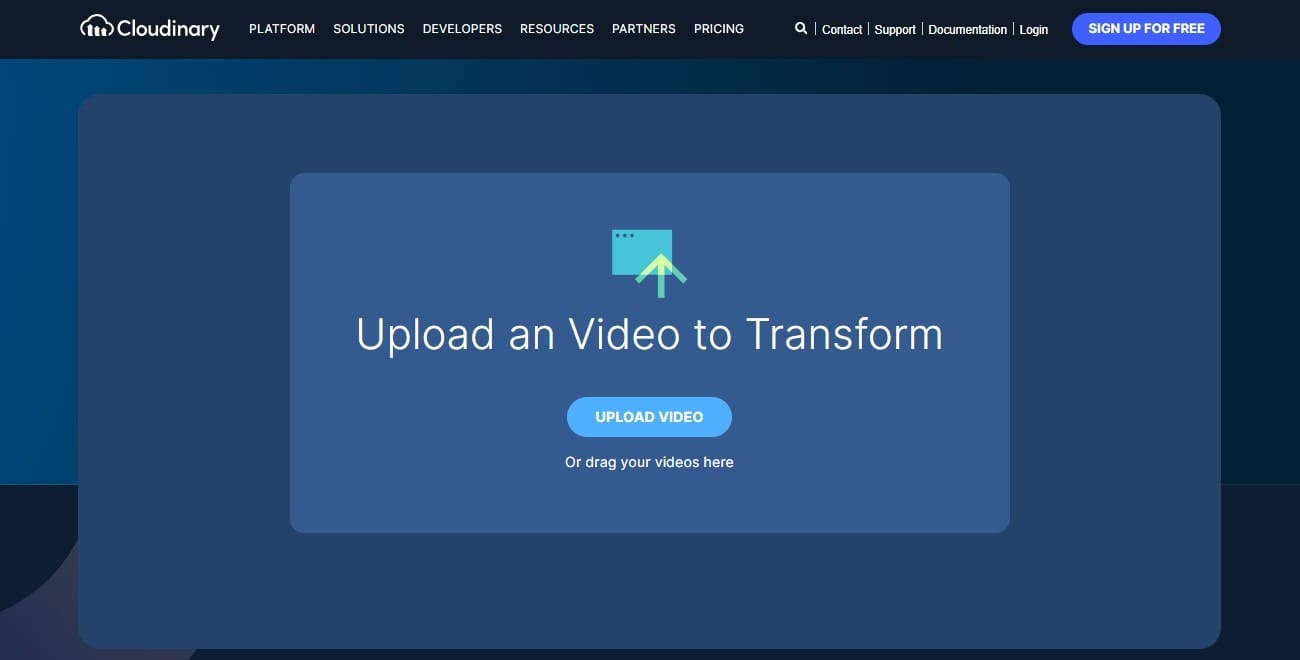
Cloudinary starts as a drag-and-drop free MP4 converter, then points users toward automated video handling. Along with basic conversion, the platform offers API, batch conversion, performance optimization, and workflow automation for larger video collections.
Its wider video toolkit includes AI-powered transformations such as Generative Fill, Object Removal, and Scene Replacement. The focus is closer to web-ready video processing than simple format switching.
Pros
- Simple converter online for free
- Supports batch conversion to MP4
- API options available
- Useful for website and app workflows
Cons
- Platform may be excessive for casual use
Conclusion
A good MP4 converter should match the file you’re working with. For small clips, an online tool is usually enough. For large files, private videos, or regular conversion, desktop software gives you more stability and control.
Before sharing the final MP4, open it once and check the sound, picture, and file size. A quick check can save you from converting the same video twice.