7 Easy Online Audio Converters for Quick File Formatting

Audio files often arrive in the wrong format: M4A instead of MP3, WAV instead of AAC, video instead of a separate audio track. An online audio converter helps fix that fast. Upload, choose the output, convert, download – that easy.
Looking for the best MP3 converters?
Below are seven simple tools for online file conversion, with notes on what each one handles best and where each may feel less convenient.
1. Movavi Online Audio Converter
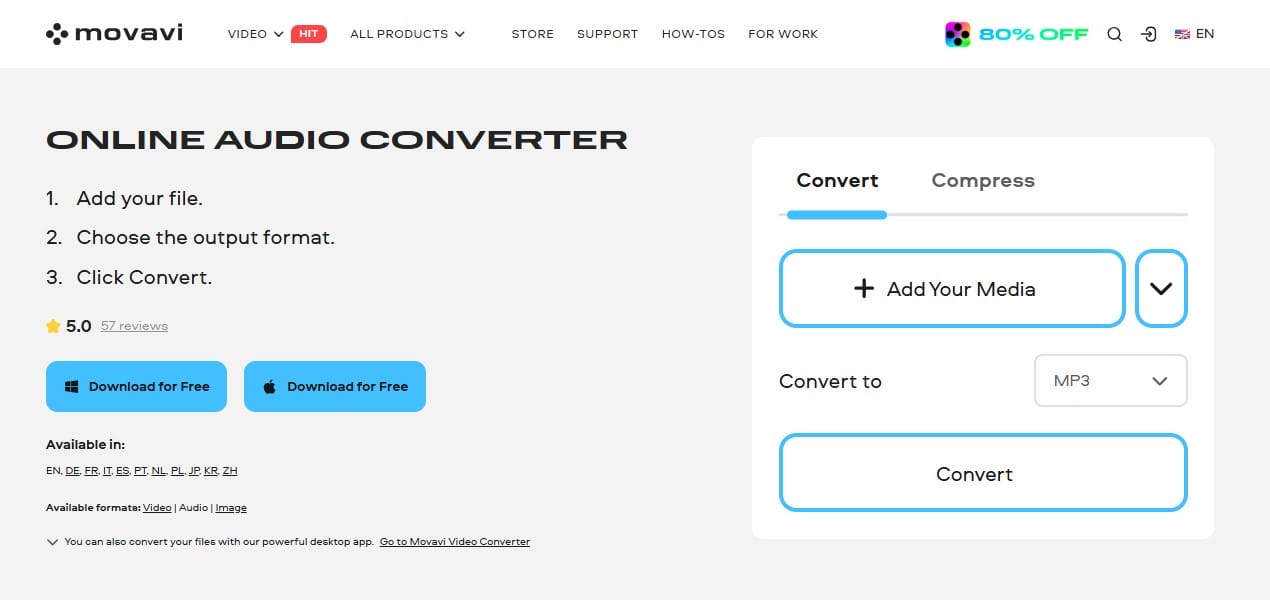
Movavi Online Audio Converter is a simple browser tool for common audio format changes. The page also includes compression, Dropbox upload, and bitrate settings for adjusting file size or output quality.
It supports many popular audio formats, including AAC, AIFF, APE, FLAC, M4A, MP3, OGG, OPUS, WAV, and WMA. That covers most everyday cases: change WAV to MP3 for easier sharing, turn a mobile recording into a more accepted format, or convert audio for upload to a platform with strict file rules.
Pros:
- Works well for quick one-file conversions
- Covers the formats most users actually need
- Cloud upload option helps when the file is already stored online
Cons:
- No batch conversion offered
- Fewer workflow controls than dedicated desktop software
2. XConvert Audio Converter
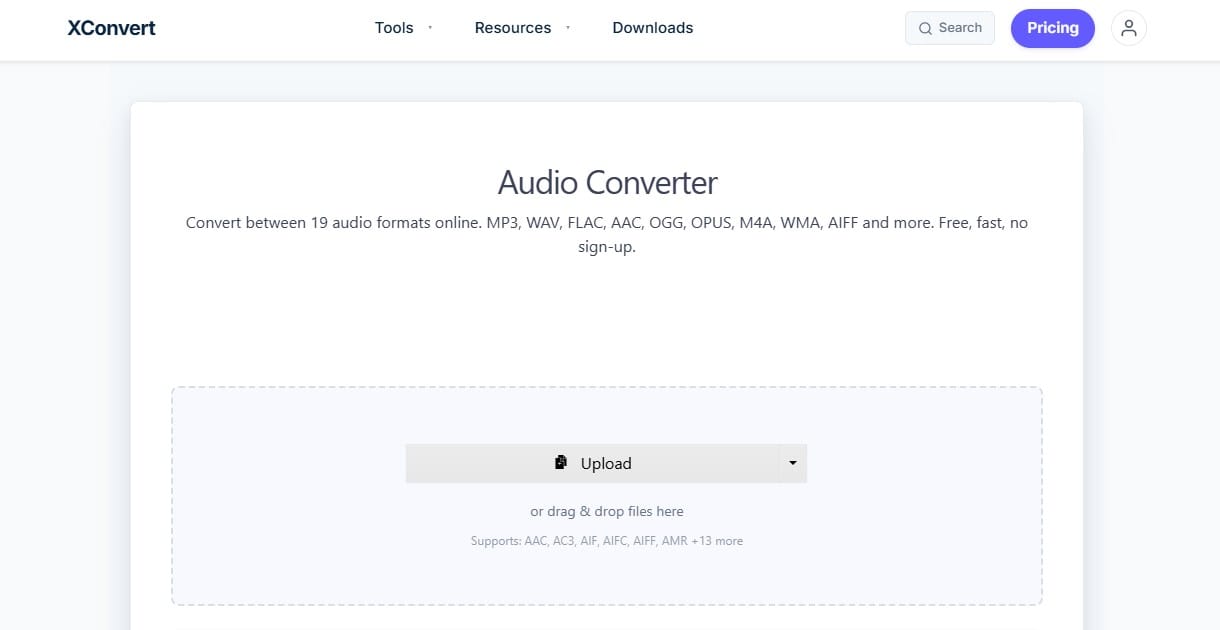
XConvert suits multi-file conversion and jobs with specific output requirements. Someone preparing podcast clips, course audio, or a set of voice recordings can apply the same bitrate, sample rate, and channel settings across files, then download the converted files as a ZIP archive.
The output controls are useful when audio has to fit a platform rule or file-size limit. A mono MP3 at a lower bitrate works for speech. A higher-bitrate file is better for music. Sample-rate control matters when an app or upload form asks for a specific audio setup.
XConvert can also extract sound from video files, so it works for meeting recordings, lectures, screen captures, and short clips where the final file needs to be MP3 or another audio format.
Pros:
- Handles multi-file jobs better than many simple web converters
- Useful controls for speech, music, and platform-specific output
- ZIP downloads for easier batch management
Cons:
- Settings may slow down users who only need the default MP3 option
- Interface feels more utilitarian than beginner-oriented
3. Zamzar Audio Converter
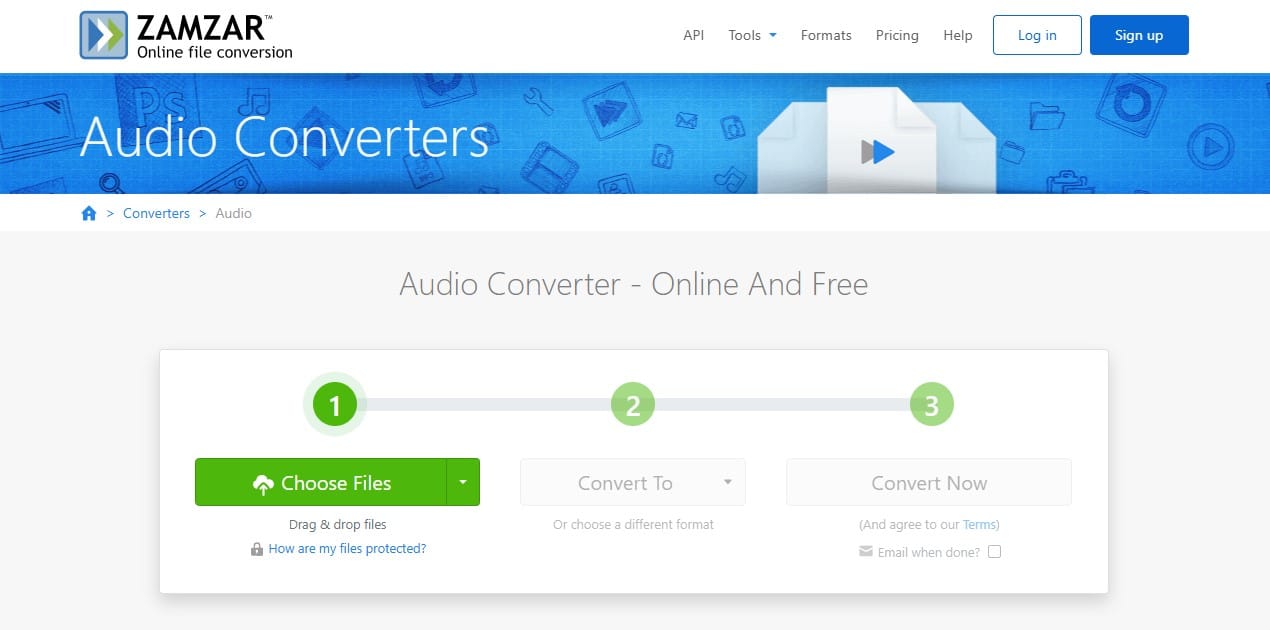
Zamzar accepts audio from a device, URL, Box, Dropbox, Google Drive, or OneDrive. That matters when the file is in cloud storage or behind a shared link, not on the device you’re using.
It supports the expected formats (MP3, WAV, M4A, AAC, etc.), plus more specific ones like AC3, ALAC, AMR, CAF, M4B, MIDI, and RA. It can cover device-specific cases too: ringtones, audiobook files, older players, and apps that reject newer or less common formats.
Pros:
- Broad audio format list
- Familiar file-conversion flow
- Optional bitrate and sample-rate settings on some conversion pages
Cons:
- Free conversions are limited to 2 files per 24h
- Limited audio-specific output controls
4. SwiftConverter Audio Converter
SwiftConverter lists a wider mix of source formats than many simple MP3 converters: ACT, DS2, DSS, DVF, GSM, MOH, RAW, SPX, VOC, VOX, and others appear alongside common formats like MP3, WAV, M4A, AAC, FLAC, and OGG. The outputs also include AMR, APE, DCT, DTS, GSM, M4B, M4R, OPUS, RAW, SPX, VOX, WAV, and WMA.
The visible format list is helpful. Users can check compatibility before uploading a file instead of discovering the problem halfway through conversion.
SwiftConverter also includes quality and bitrate options. Common bitrate choices like 64, 96, 128, 192, and 320 kbps help reduce file size or preserve more detail.
Pros:
- Covers many older and niche input formats
- Supports batch upload
- Includes quality and bitrate choices
Cons:
- Visual design feels dated
- No strong cloud-import option
5. Snappixify Audio Converter Online
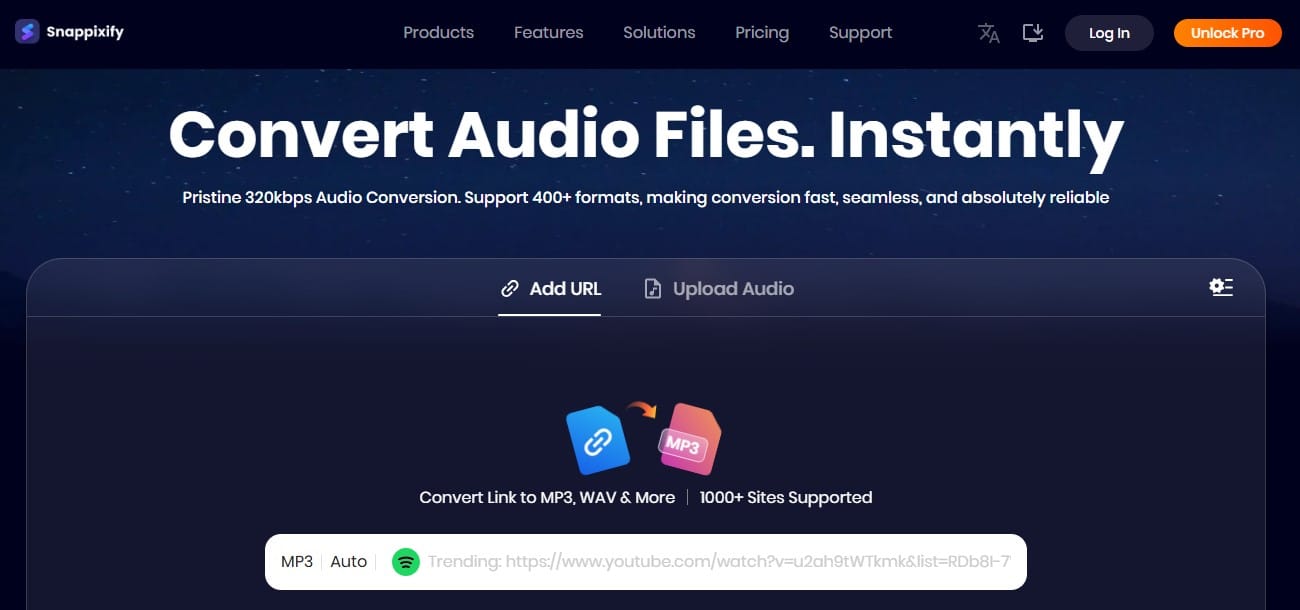
Snappixify Audio Converter Online is built around heavier browser-based conversion. The page supports uploads of up to 100 files with a 5 GB max per file, batch conversion, 400+ audio formats, and MP3 bitrate control up to 320 kbps.
The free plan is quite limited: 3 downloads per day, 3 conversions per day, single-file processing, 1080p maximum video resolution, and 128 kbps audio bitrate. Pro raises those limits to unlimited conversions/downloads, batch processing, up to 4K/8K video, and audio bitrate up to 320 kbps.
Pros:
- Good fit for users who handle audio from several sources
- Useful when files come from links rather than local storage
- More scalable than very basic browser converters
Cons:
- Some practical limits depend on Pro access
- The feature range may feel excessive for one small file
6. HappyScribe Video to MP3 Converter
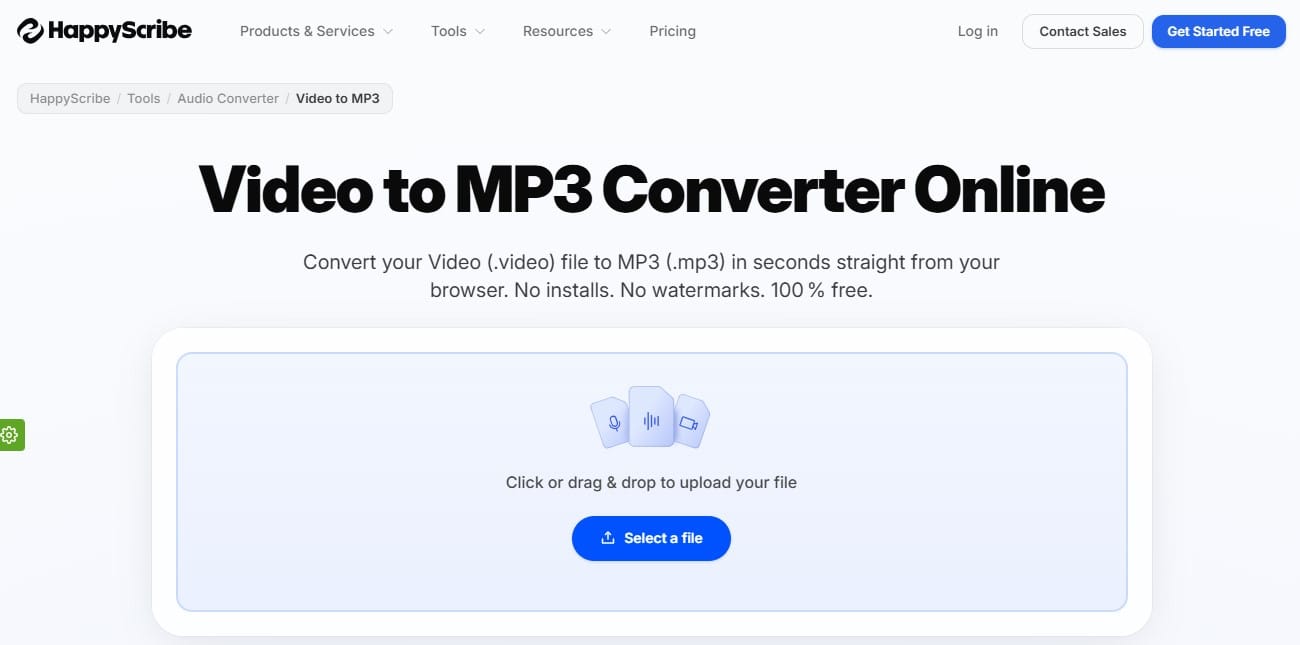
HappyScribe’s converter is a focused video-to-MP3 tool. It accepts video files, converts them to MP3, and keeps MP3 as the default output format. There are also separate pages to convert audio to other formats, including MP4, MOV, AVI, FLV, M4V, MPEG, VOB, WEBM, WMV, and others.
HappyScribe makes sense when the source file is a recorded webinar, interview, lecture, phone video, or meeting clip. After conversion, the MP3 can be used for listening, sharing, or transcription.
After conversion, the MP3 can also go into HappyScribe’s transcription tool.
Pros:
- Popular video-to-MP3 focus
- No install required
- Fits speech-heavy videos that may need transcription later
Cons:
- No visible controls for bitrate, sample rate, or audio channels
- Less relevant for music videos or files where export quality settings matter
7. Aiseesoft Free Audio Converter Online
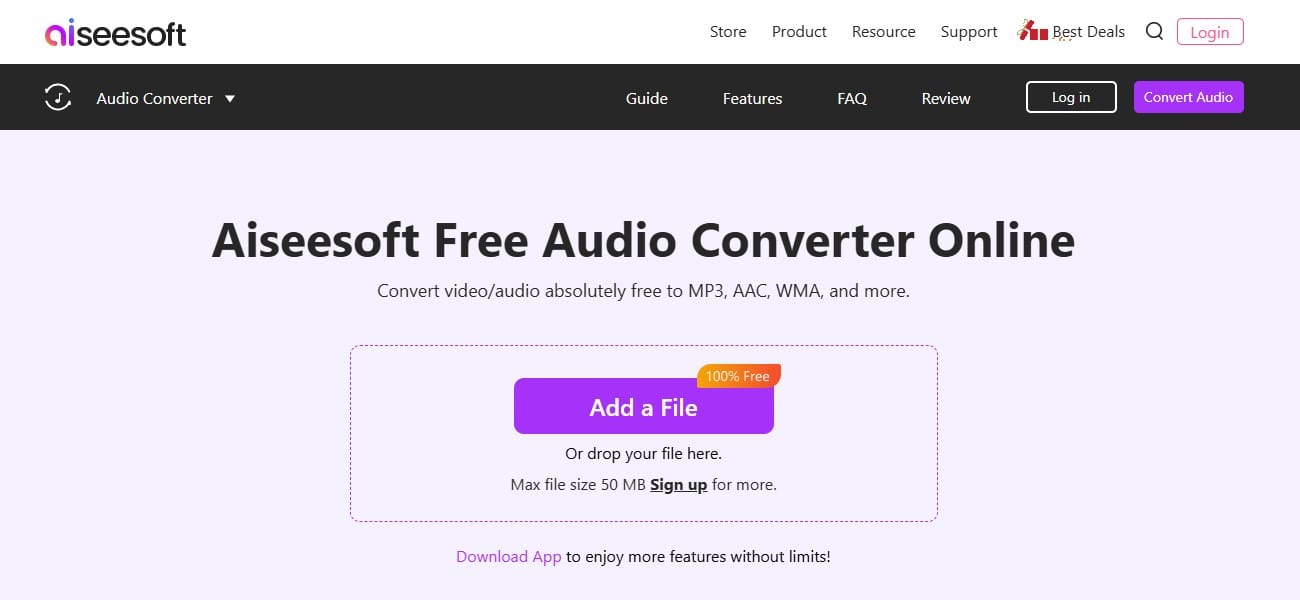
Aiseesoft Free Audio Converter Online works in the browser and handles both audio-to-audio conversion and video-to-audio extraction. The page lists MP3, AAC, AC3, WMA, WAV, AIFF, FLAC, MKA, M4A, M4B, and M4R as supported formats. Users can adjust output quality, sample rate, audio bitrate, and audio channel before conversion.
Users can check the output audio before saving, which is a real distinction among these tools. The limits are also clear: unlogged-in users get 2 files per 24 hours and files under 50 MB; logged-in users get 10 files per 24 hours and files under 100 MB; the Pro version removes those limits and expands supported formats.
Pros:
- Output controls include quality, sample rate, bitrate, and audio channel
- Preview option before saving the converted file
- Handles audio files quickly
Cons:
- Requires login for less restrictive free use
- Free users get tight file-count, file-size, and format limits
What online audio converters are good for?
An online audio converter works best for quick format fixes, especially when the file is short and does not contain private material. It can manage tasks like these:
- Convert MP3 files to any accepted format
- Convert M4A voice notes to MP3
- Changing WAV files to smaller MP3 copies
- Extracting MP3 audio from video
- Preparing audio for websites, email, or messaging apps
- Making a file compatible with a player, editor, or upload form
The format choice depends on where the file goes next. MP3 is usually the safest option for sharing; most apps and devices support it. WAV, on the other side, is better for editing or high-quality exports. And AAC/M4A are common for Apple devices and mobile recordings.
Bitrate is worth checking before conversion. A 320 kbps MP3 keeps more detail but creates a larger file. A 128 kbps MP3 is usually enough for speech and takes less space. Mono output can also reduce file size for voice recordings.
For private meetings, client files, unreleased music, or sensitive voice notes, a desktop audio converter may be a safer choice. Online file conversion is convenient, but the file still has to be uploaded to a web service.
Final pick
The right online audio converter mostly depends on the source file: audio-to-audio, video-to-MP3, batch conversion, or lossless format work. Check file limits, output settings, and privacy before uploading, then choose the tool that matches that specific job.